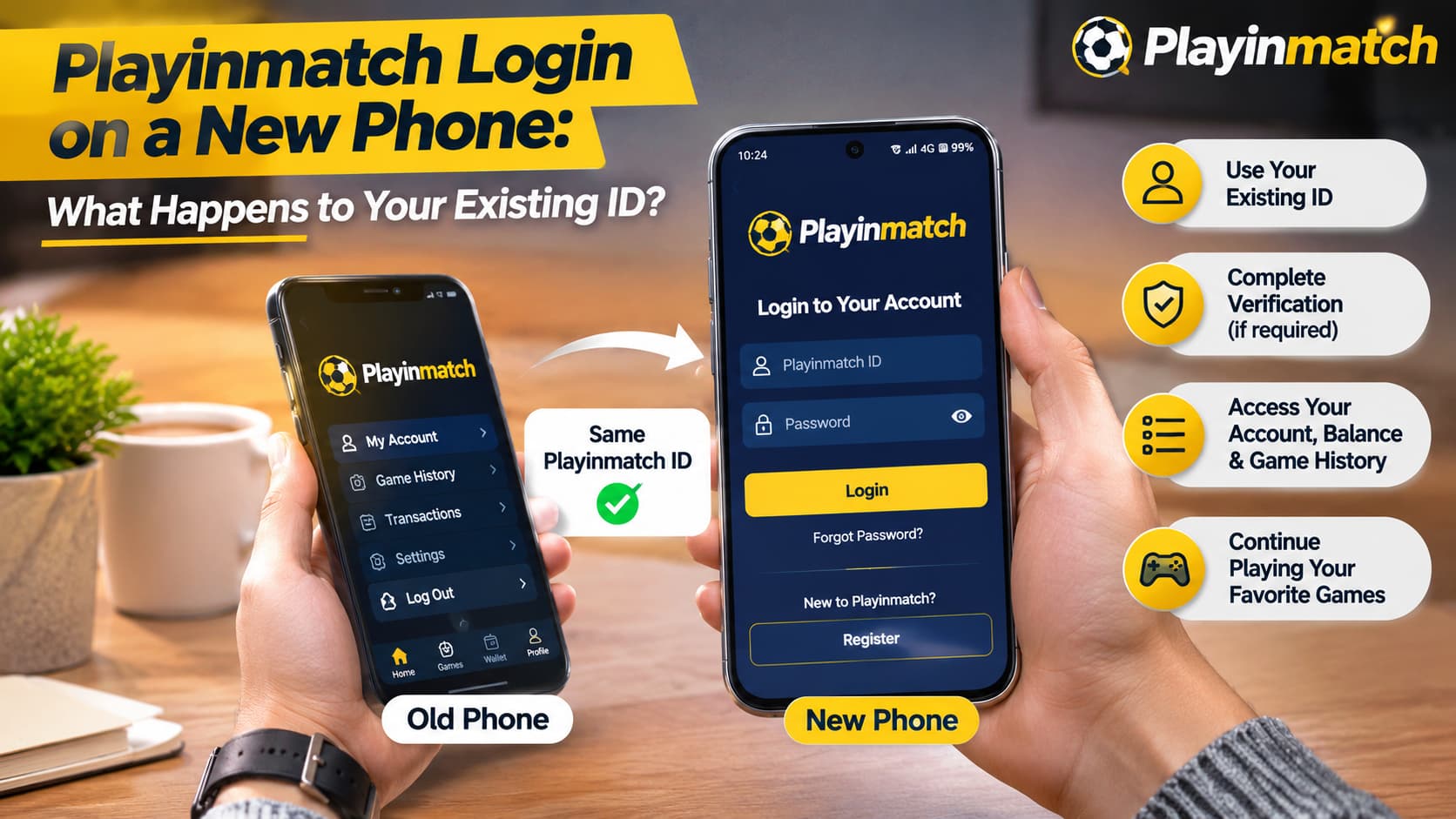
Bought a new smartphone and wondering whether your old Playinmatch account will still work? You’re not alone. Many users worry about losing their account details, transaction history, or access to familiar features when switching from one mobile device to another.
The good news is that your existing Playinmatch ID is associated with your account, not permanently tied to one phone. Changing your smartphone does not normally mean you need to create another account.
However, logging in from a new device can involve additional security checks, especially when your registered mobile number has changed, or your previous device is no longer available.
In this article, we’ll explain what happens to your Playinmatch ID when you change phones, how the Playinmatch login process works on Android and iPhone, and what to do if your existing account doesn’t open.
Will Your Existing Playinmatch ID Work on a New Phone?
Yes. Playinmatch describes support for account access across compatible mobile phones, tablets, and desktop computers using existing account credentials.
For example, suppose you previously used Playinmatch on a Samsung smartphone and recently purchased a new OnePlus or iPhone.
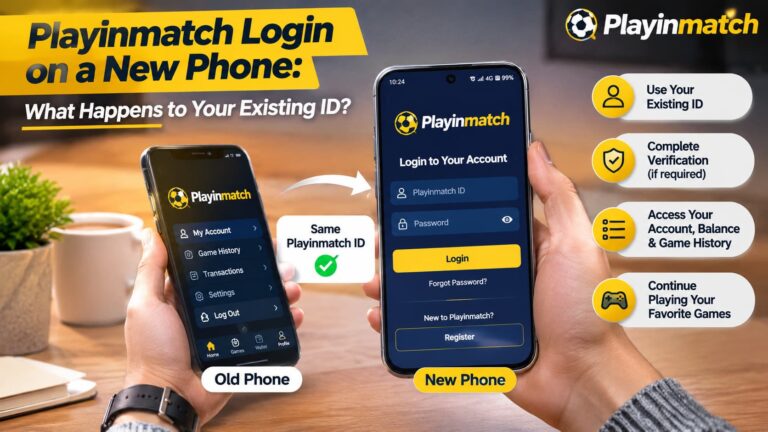
Your registered Playinmatch ID should remain associated with the same account. You would normally use your existing credentials rather than going through the Playinmatch registration process again.
Here is what generally happens when switching devices.
| Account Feature | What Happens on a New Phone? |
|---|---|
| Playinmatch ID | Normally remains the same |
| Registered username | Remains associated with the account |
| Login password | Existing password can generally be used |
| Registered mobile number | Remains unchanged unless updated |
| Account verification | Additional checks may be required |
| Transaction history | Normally remains associated with the online account |
| Account balance | Should remain linked to account records |
| Saved browser password | May need to be entered again |
| Installed application | May require separate installation |
| Previous login session | May not transfer to the new device |
The exact behaviour depends on the platform’s security settings and account status.
Remember: Your phone is the device you use to access your account. It is not the account itself.
Also Read : Playinmatch Registration Guide: Create Your Account in Minutes
How to Log In to Playinmatch on a New Phone
If you already have a registered account, the main requirement is to use the correct Playinmatch login information and complete any security checks.
Step 1: Check Your New Phone’s Internet Connection
Before opening the Playinmatch website, confirm that your phone has a stable internet connection.
You can use mobile data or a trusted Wi-Fi network.
If a webpage doesn’t load correctly, check whether other websites are working. This can help you determine whether the problem is related to your connection or the website itself.
Avoid using public Wi-Fi networks when entering sensitive account information.
Step 2: Open the Playinmatch Login Page
Open Chrome, Safari, or another updated mobile browser.
Visit a Playinmatch website address that you have independently verified and select the login option.
Be careful when opening links received through WhatsApp, Telegram, SMS, or unfamiliar social media accounts.
A website that looks similar to Playinmatch is not necessarily operated by the same organisation.
Step 3: Enter Your Existing Playinmatch ID
On the Playinmatch login screen, you may see fields for:
- Playinmatch ID or registered mobile number
- Password
Enter the same account details you used on your previous phone.
If you have forgotten your username, check any legitimate account confirmation messages or use an authorised account recovery channel.
Avoid creating a new ID merely because you cannot remember your original details.
Step 4: Complete New Device Verification
A new smartphone may be treated as an unfamiliar device.
For additional security, the platform may request verification through your registered mobile number or another account recovery method.
Depending on the authentication system, this could include an OTP, account confirmation, or a security review.
Complete verification only through a trusted login process. Never share an OTP or password with anyone claiming they can activate your account faster.
Step 5: Review Your Account Dashboard
Once you have successfully signed in, review the information displayed in your account.
Check that your username and registered contact details are correct.
You can also review your available account records and settings to confirm that your existing account has opened rather than a newly created profile.
If anything appears unfamiliar, contact verified customer support before making further changes.
Do You Need to Register Again After Changing Phones?
No, existing users should not normally need to register again simply because they have purchased a new phone.
The Playinmatch register process is intended for eligible users creating an account for the first time, subject to the service’s terms and applicable law.
For someone who already has a Playinmatch ID, the appropriate process is usually account login or recovery.
Creating a second account unnecessarily may confuse, especially when a service has restrictions on duplicate profiles.
Playinmatch Register vs Login on a New Device
| Situation | Appropriate Account Process |
|---|---|
| Already have a Playinmatch ID | Existing account login |
| Purchased a new smartphone | Existing account login |
| Forgot your password | Password recovery |
| Changed your registered phone number | Account contact-detail update or support |
| Existing account is locked | Account recovery or security review |
| Never had an account | Registration, only where legally permitted |
If you are unsure whether your original account is still active, request account assistance rather than immediately creating a replacement.
What Happens to Your Playinmatch Game History and Account Records?
One of the biggest concerns when changing phones is whether previous account activity will disappear.
In most online account systems, records are stored on the service’s servers rather than only on the user’s mobile device.
Playinmatch describes an account dashboard that includes transaction information and account-related history.
That means switching phones should not, by itself, erase records associated with your existing account.
1. Account Profile Information
Your username, registered contact details and account preferences are generally maintained as part of your online profile.
They should not need to be recreated every time you change devices.
2. Transaction and Account History
Account-related transaction records are normally stored within the online account system.
If an expected record is missing after login, check whether you have opened the correct account and whether a date filter is affecting what is displayed.
3. Playinmatch Game Records
Depending on the features provided, Playinmatch Game history and previous account activity may be available through the account dashboard.
The availability and retention of individual records are subject to platform rules. A new phone does not automatically mean old online activity has been deleted.
4. App and Browser Settings
Some information is stored locally on a phone.
For example, downloaded files, browser cookies, saved passwords, and app preferences may not transfer automatically.
This is why your new device might ask you to sign in again even though your account still exists.
Playinmatch Login Not Working on a New Phone? Common Problems and Solutions
Changing devices can sometimes trigger login errors. These problems do not necessarily mean your account has been deleted or suspended.
Here are some common situations.
Problem 1: Incorrect Playinmatch ID or Password
You might enter an old username, use the wrong password, or accidentally include an extra space when typing.
What to do:
Check your account credentials carefully.
Passwords are generally case-sensitive, so make sure your new phone’s keyboard isn’t automatically changing letters.
If you cannot remember your password, use a verified recovery option.
Problem 2: OTP Not Received on Your New Phone
This problem can occur if your registered SIM card is inactive, your number has changed, or there is a temporary network delay.
What to do:
Confirm that the registered number can receive messages.
If you still use the same number, check your mobile network and wait for the verification message.
If your number has changed, contact authorised support to ask about updating your account’s registered contact information.
Problem 3: Playinmatch Website Not Opening
A login page may fail to load because of network connectivity, outdated browser software, temporary maintenance, or a website availability problem.
What to do:
Try these checks:
- Test another website to confirm your internet connection.
- Update your browser.
- Clear the affected website’s cache if necessary.
- Check whether the service has published a maintenance notice.
- Avoid unfamiliar alternative domains suggested by third parties.
Do not assume that every mirror website advertising Playinmatch is genuine.
Problem 4: Account Temporarily Locked
Repeated unsuccessful login attempts or unusual access activity may lead to additional security restrictions.
What to do:
Stop repeated password attempts and check for any security notification.
Use an authorised recovery process or contact verified support.
Do not attempt to bypass account restrictions using another person’s credentials or unauthorised software.
Problem 5: Your Playinmatch ID Is Not Recognised
This may happen when the wrong account identifier has been entered or when you are on an unrelated website using similar branding.
What to do:
Check the exact website address and your registered account information.
If the issue continues, request verification through the relevant account support channel.
What If You Lost Your Old Phone?
Losing a smartphone creates a different security concern from simply purchasing a new device.
If your previous phone was lost or stolen, you should protect any accounts that may still be accessible on it.
Start with these precautions:
- Use your phone provider’s device-location or remote-lock feature, if enabled.
- Secure the email account connected to your Playinmatch ID.
- Change your account password through a verified recovery process.
- Revoke old sessions if the platform provides that option.
- Contact support if you suspect unauthorised account access.
- Contact your mobile provider if your SIM card is missing.
You should also change passwords for other sensitive accounts that may have been accessible on the lost device.
If your registered phone number is unavailable, ask support about approved identity verification and account recovery procedures.
Avoid paying unknown individuals who promise to recover your account instantly.
Can You Use the Same Playinmatch ID on Two Phones?
Playinmatch describes cross-device account access, but that does not necessarily confirm that two phones can maintain active sessions at the same time.
Some online services permit simultaneous sessions. Others automatically sign out an earlier device when a new device logs in.
The exact policy should be confirmed through current platform documentation.
For security reasons, avoid sharing your Playinmatch ID with friends, family members or unknown agents.
An account registered in your name should remain under your control.
If you notice an unfamiliar session, change your password and report the activity.
Playinmatch App vs Mobile Browser: What Changes on a New Phone?
Users may encounter both a Playinmatch mobile website and information about app-based access.
The main difference is how the service is opened on the device.
| Feature | Mobile Browser | Mobile Application |
|---|---|---|
| Installation | Usually not required | May require installation |
| Account credentials | Existing account details | Existing account details, if supported |
| Software updates | Browser updates | Application updates |
| Saved login | Depends on browser settings | Depends on app settings |
| Device compatibility | Depends on supported browser | Depends on app requirements |
| Security considerations | Verify the website URL | Verify the app publisher and source |
Before installing any Playinmatch APK file, check its authenticity.
An APK obtained from an unverified website could contain malicious software or request unnecessary permissions.
Android APK files also cannot be installed directly on iPhones.
Whether you use a browser or application, account security should remain the priority.
Five Security Tips When Switching Your Playinmatch Account to a New Device
1. Secure Your Old Phone Before Replacing It
If you still have access to the previous phone, sign out of sensitive accounts before selling, exchanging or giving it away.
Back up important personal files separately.
2. Use a Strong and Unique Password
Create a password that you do not use for other accounts.
Avoid easily guessed combinations such as your name, birth date or mobile number.
3. Keep Your Registered Mobile Number Updated
Your registered phone number may be needed for password recovery or identity verification.
If your contact details change, ask about the approved process for updating them.
4. Avoid Unverified Playinmatch Links
Be cautious of websites claiming to offer special login access, account unlocking or automatic device activation.
Always confirm the website’s identity before entering credentials.
5. Review Your Account After the First Login
Check your Playinmatch account information for anything unusual.
If you suspect your account was accessed without permission, change your password and contact support promptly.
How to Contact Playinmatch Support for New Phone Login Problems
If you have tried the standard recovery options and still cannot access your existing account, Playinmatch customer support may be able to explain the available verification process.
The website advertises online support options for account and technical assistance. Check the current contact details before submitting a request.
Information to Prepare
| Information | Why It Helps |
|---|---|
| Playinmatch ID | Identifies the existing account |
| Registered mobile number | Supports account identification |
| Previous device type | Provides context for device-change problems |
| New device type | Helps identify compatibility issues |
| Error message | Explains the login failure |
| Date the problem started | Helps support investigate the issue |
Sample Message for Account Assistance
Subject: Unable to Access My Existing Playinmatch ID on a New Phone
Hello Playinmatch Support,
I recently changed my mobile phone and am having difficulty accessing my existing Playinmatch account.
My registered Playinmatch ID is [Your ID].
My previous device was [Old Phone Model], and I am now using [New Phone Model].
The issue I am experiencing is [Briefly Describe the Login Problem].
Please advise me on the approved account verification or recovery process.
Thank you.
Do not include your password, OTP, banking PIN or other private security codes in the message.
FAQs About Playinmatch Login on a New Phone
1. Can I use my old Playinmatch ID on a new phone?
Yes. Playinmatch describes access across compatible devices using existing account credentials. Additional verification may be required when signing in from an unfamiliar device.
2. Will my Playinmatch ID change when I buy a new mobile?
No, changing your phone does not normally change your registered account identifier.
3. Do I need to complete Playinmatch register again?
Not if you already have an existing account. Use the normal login or account recovery process rather than creating a duplicate profile.
4. Can I log in using the same mobile number?
If your registered mobile number remains active and is accepted as a login identifier, you can generally continue using it on the new device.
5. Will my account balance disappear after switching phones?
A device change should not by itself alter online account records. If you notice a discrepancy, review your account statement and contact authorised support.
6. What happens to my Playinmatch Game history?
Previous activity should normally remain linked to the online account, subject to the platform’s data retention and account policies.
7. Can I access Playinmatch on an iPhone after using Android?
The website describes access through compatible mobile browsers and devices. You may need to sign in again and complete verification.
8. Why does Playinmatch ask for verification on a new device?
An unfamiliar device may trigger additional security checks intended to confirm account ownership.
9. What should I do if I forgot my password?
Use the Forgot Password option on a verified Playinmatch login page or request help through an authorised support channel.
10. Can I use my Playinmatch ID on multiple devices simultaneously?
Cross-device access is described, but the specific rules for simultaneous active sessions should be checked with the platform.
Your Playinmatch ID Does Not Normally Change With Your Phone
Switching to a new smartphone should not mean starting your entire Playinmatch account from the beginning.
Your existing Playinmatch ID, registered details and online account records are generally associated with your account rather than the physical device.
The main differences you may notice are a fresh login session, additional identity verification and the need to configure your browser or application again.
If you face an issue with Playinmatch login, check your credentials, registered mobile number and website authenticity before taking further action.
Above all, protect your account information and avoid unverified recovery services.
Need Help With Your Existing Playinmatch ID?
Changing phones and unable to access your account?
Read the Playinmatch account recovery and login troubleshooting guides, or check the verified customer support information for assistance with existing account access.